Terminal Fear
Even if you don’t work in a tech-adjacent role, you’ve probably seen a terminal before. It’s the (generally pitch black) window that nerds in movies type incomprehensible jargon into while they’re trying to hack the government, or a bank, or the matrix. You may also have seen one in real life, if your tech support team needed to do something interesting to get your laptop working again. But you probably haven’t used one yourself, and you might even think they’re a bit scary. I mean, just look at it!
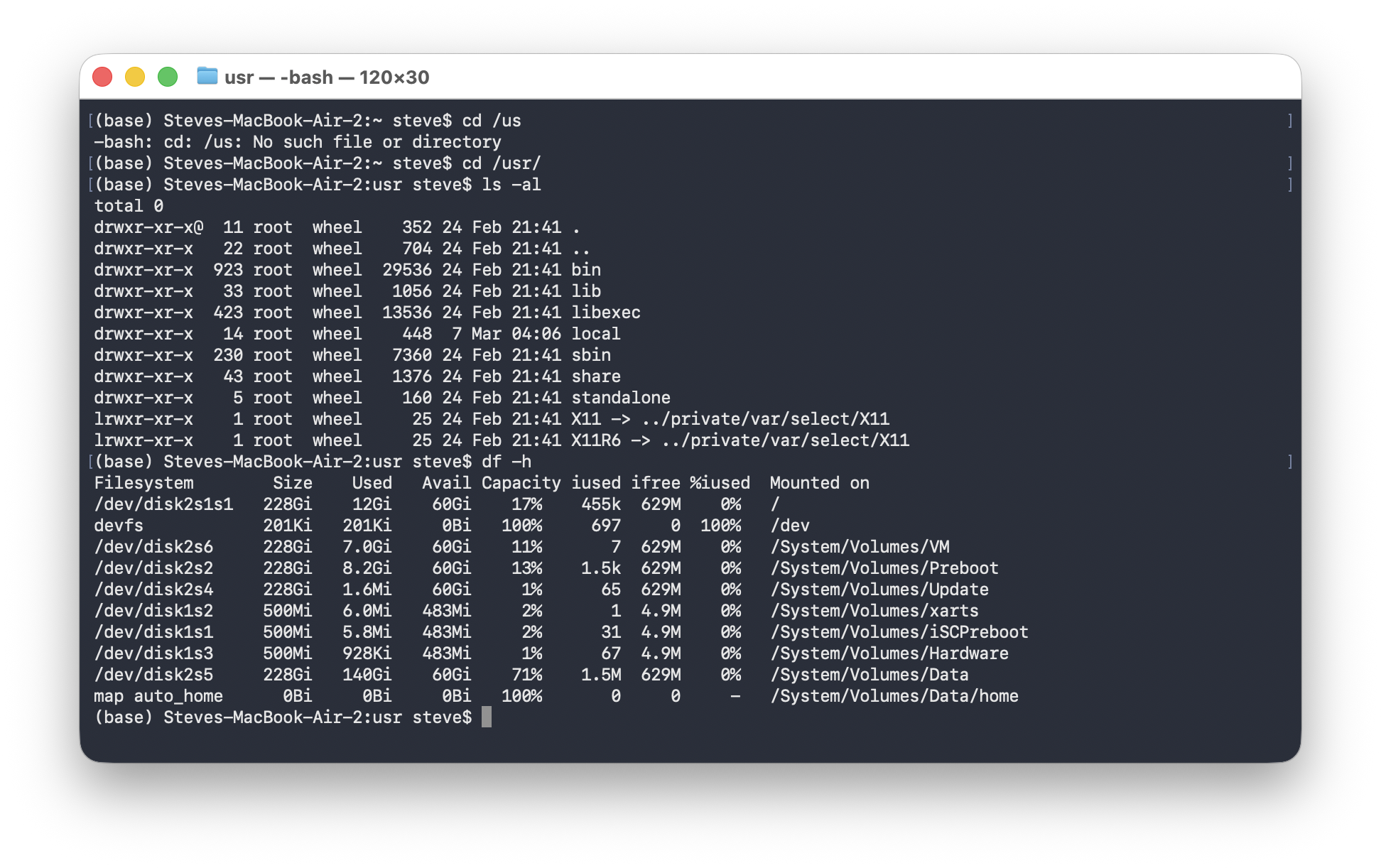
Scary, right?
Whether you’re working on Windows or Mac, you have access to one of these, a relic from decades ago when computers were driven by means of arcane commands, typed in one at a time. These command line interfaces (CLIs) still have their place, especially for people who write software or manage server and network hardware, but for most of the world they’re just a happy reminder of how far modern computing has come.
Scary though it may seem, however, one of the best ways to interact with tools like Claude Code right now is to use the terminal. That’s not to say that ’normal’ graphical tools aren’t on the way — they are — but at least for now, the terminal offers a slightly richer and more collaborative experience. And one that really isn’t too scary to learn, even for a non-techie. You can even change the terminal colour to something slightly less intimidating.
Getting started
Anthropic are aware that not all Claude Code users are terminal pros, and they’ve produced an installation guide aimed at first-time terminal users. While it might still look a little intimidating, I promise it’s actually straightforward — work through it step by step and you’ll be fine. (I should mention here that you’ll need a paid Claude subscription to use Claude Code — it’s $20 / £18 a month for Pro, which is the cheapest level that includes Claude Code).
Once you’ve got Claude Code installed, it’s time to fire it up. When you run Claude Code, you do it from inside a folder — unless you tell it otherwise it will only look at the files and folders inside. This makes it easy to focus it on a particular project. So first, find the folder you want to start off in. If you’re starting from scratch, create an empty folder somewhere — in your Documents is as good a place as any. Next you need to fire up the terminal. On a Mac, right/two-finger click to get the pop-up menu, then select ‘New Terminal at Folder’. On Windows, right-click on the folder and select ‘Open In Terminal’.
Once the terminal has opened, type
claude
(and push enter — just like an instant message chat, you always hit enter to send the message). Claude Code will launch. And from here, it’s just like talking to Claude in a browser or an app — except this Claude can read your files, run tools on your computer, access the web, talk to your Jira and Confluence instances, write documents with you, and so much more. I didn’t want you to have to take my word for it, so I asked Claude:
Let’s assume I have no idea what you can do. In fact, let’s assume I’m non-technical and I’ve been told that, despite your name, you are actually a really good collaborator for things other than coding. What would you say to that, and what sorts of examples would you give of your capabilities?
That’s true — despite being called “Claude Code,” I’m genuinely useful for a wide range of work that has nothing to do with programming. Here’s how I’d break it down:
What I actually am
I’m an AI assistant that can read files, search the web, write documents, work with data, and take actions on your computer — all through conversation. The “Code” part just means I have tools to do things, not just talk about them.
What I can do (beyond coding)
- Write & edit — emails, memos, proposals, anything document-shaped
- Research — search the web, read PDFs/files, summarize findings
- Think through problems — sounding board, structuring ideas, challenging assumptions
- Work with your files — read, create, organize documents on your machine
- Explain things — break down complex topics in plain language
- Calendar & email — with Google integrations
The key difference from regular AI chat: I don’t just talk about doing things, I actually do them — real files, real searches, real results.
Making the next step
It’s really up to you where you go next. Work on a document together, ask Claude to help with some research (I recently gave it a competitor list and asked it to review it, research it and produce a summary of the state of the market), even chat to it about things that you’re stuck on. In my experience you get the best out of it when you treat it as you would anyone else you work with — don’t blindly accept its work, but assume that it’s smart enough not to require every last detail to be interrogated. Trust, but verify: for example, with the research project I mentioned, I asked it to provide sources for every significant claim. And I checked them. And, just like a human colleague, don’t expect perfection. Claude sometimes makes mistakes. You get to decide what’s acceptable, but I would be cautious about letting one or two errors scare you away.
One thing to bear in mind as you get started is that Claude will always ask your permission before doing anything potentially destructive, like deleting files. You can also tell it a bit about who you are, and your level of tech-savviness, to help it pitch to you at the right level. In a later post I’ll be covering a concept called CLAUDE.md files, which are simply standing instructions to Claude about how to work with you. These are a great place to include information about yourself and your preferences, but to get started you can just copy-paste a brief intro into the start of every chat — it will have the same effect.
Speaking Claude’s language
Claude is capable of reading and producing a wide variety of different document formats, but — especially when you’re actively collaborating — you’ll have a much easier time if you use a format called Markdown. Markdown is a really, really simple way of using text symbols — asterisks, hyphens, hashes and so on — to indicate how you want to style some text. There are a ton of guides online on how to use Markdown, but you can think of it as part of Claude’s native language. It understands Markdown really well, and it produces it really well. Once you’re done partnering on a doc, converting to something more human-friendly like Word or PDF is straightforward.
If you want to see what an example looks like, just ask Claude to create one for you. (And if for some reason you get stuck opening the file it creates, ask it for help there too!)
Ready to go? Fire it up and let me know how you get on in the comments below.
Comments